

How do I join my therapy video sessions?
Please follow the instructions below to prepare for your first video session. Learn how to set up your device correctly in advance and find answers to commonly asked questions about video sessions.
Get ready for your first video session
How to join a video session
Tips to improve video sessions
How should I prepare for my first video session?
Follow these simple steps for a smooth video visit.
Create an AbleTo account
This is the account you’ll log into to join your video sessions. We recommend creating one ahead of your first session. Having an AbleTo account will also allow you to manage your sessions and access your program resources.
Get yourself ready
- Find a quiet, private place to talk. Try to avoid any distractions, like TVs or pets.
- Make sure the room is well lit.
- Find a comfy spot to sit, like a kitchen table or living room chair.
Get your information ready
- If this is your initial consultation, have a list of your medications and the names of your main doctors on hand.
Get your tech ready
- It’s best to use a laptop or desktop computer. We recommend using Google Chrome as your web browser. Safari and Firefox also work. Internet Explorer does not.
- Make sure your internet is stable.
- Plug in or charge your device.
- Close other apps on your device.
- Stay close to your Wi-Fi router.
How do I join a video session?
You can join the video session from your reminder email or text, or the AbleTo dashboard.
Select the link that matches the device you’re trying to use. It will take you to the right set of instructions for Google Chrome, our recommended browser for video sessions.
For a desktop or laptop computer
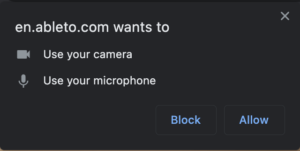
If this is your first time joining an AbleTo video session, you will be asked to allow Chrome and the AbleTo website (en.ableto.com) to access your camera and microphone. Please follow the steps below
- Log in to your AbleTo account and join the session up to 15 minutes early. This gives you time to get yourself and tech ready. No account? Create one now.
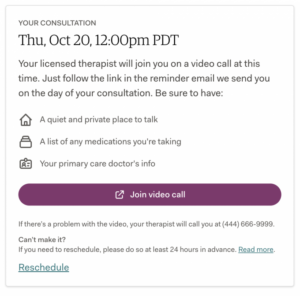
- Click Join video call. (See screenshot.)
- A window may pop up asking to use your camera and microphone. Select Allow. (See screenshot)
- If your camera and microphone are blocked, click the video icon in the browser address bar. (See screenshot)

- A pop-up window will appear, asking for permission to use your camera and microphone.
- Choose Always allow https://en.ableto.com to access your camera and microphone. (See screenshot)
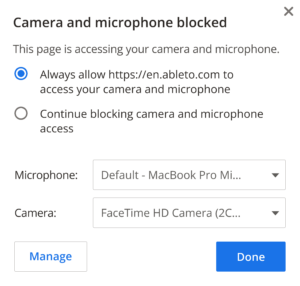
- Choose the camera and microphone you’d like to use.
- Make sure your mic is unmuted, your camera is uncovered, and your video is on.
- Reload the browser to confirm the changes are enabled.
- If your provider has not yet joined, you’ll see a “Waiting for others to join” screen.
Still need help? Get more video troubleshooting tips.
For an iOS mobile device
If this is your first time using Chrome to join a video session, you’ll be asked to allow Chrome and the AbleTo website (en.ableto.com) to access your camera and microphone. Please follow the steps below.
- Log in to your AbleTo account and join the session up to 15 minutes early. This gives you time to get yourself and tech ready. No account? Create one now.
- Select Join video call. (See screenshot.)
- Allow Chrome access:
On the Chrome mobile browser, 2 windows will pop up asking if Chrome can use your camera and microphone. Select OK. (See screenshots)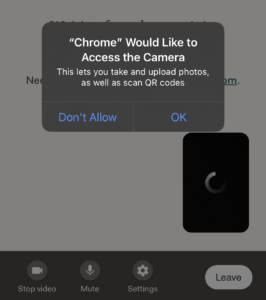
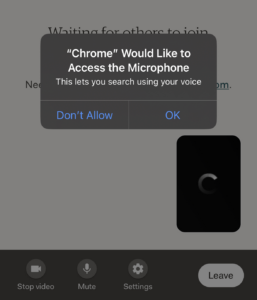
- If you selected “Don’t Allow,” please follow one set of steps below to allow access to your camera and microphone.
- Allow the AbleTo website access:
○ Once you’ve allowed Chrome to access your camera and microphone, you’ll see another pop-up asking if en.ableto.com can access your microphone and camera. Select Allow. (See screenshot)
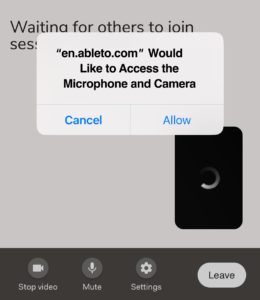
- If your camera and microphone are blocked, or if you selected Cancel in the previous step, please follow the steps below to allow the AbleTo website to access both.
○ Select the video icon in the browser address bar.
○ Toggle Camera and Microphone on.
○ Select Done.
○ Refresh the window to enable camera and microphone use. - Test your camera and microphone:
○ Once you’ve allowed Chrome and the AbleTo website to access your camera and microphone, you can use the AbleTo video toolbar to turn your video on and off and mute or unmute yourself.
○ Make sure your mic is unmuted, your camera is uncovered, and your video is on.
○ If your provider has not yet joined, you’ll see a “Waiting for others to join” screen.
Still need help? Get more video troubleshooting tips.
For an Android mobile device
If this is your first time using Chrome to join a video session, you’ll be asked to allow Chrome and the AbleTo website (en.ableto.com) to access your camera and microphone. Please follow the steps below.
- Log in to your AbleTo account and join the session up to 15 minutes early. This gives you time to get yourself and tech ready. No account? Create one now.
- Select Join video call. (See screenshot.)
- Allow Chrome access:
○ Open the Chrome app.
○ To the right of the address bar, select More and then select Settings.
○ Select Site Settings.
○ Toggle Microphone and Camera on.
○ If the en.ableto.com website is “Blocked,” select the site and then select
○ Access your microphone (or camera).
○ Select Allow. - Allow the AbleTo website access:
○ Once you’ve allowed Chrome to access your camera and microphone:
○ Return to the window with the video session.
○ Refresh the window.
○ You’ll see another pop-up asking if en.ableto.com can access your microphone and camera. Select Allow - If your camera and microphone are blocked, or if you selected Block in the previous step, please follow the steps below to allow the AbleTo website to access both.
○ Select the video icon in the browser address bar.
○ Select Permissions.
○ Toggle Camera and Microphone on.
○ Select Reset permissions
○ Refresh the window to enable the camera and microphone use. - Test your camera and microphone:
○ Once you’ve allowed Chrome and the AbleTo website to access your camera and microphone, you can use the AbleTo video toolbar to turn your video on and off and mute or unmute yourself.
○ Make sure your mic is unmuted, your camera is uncovered, and your video is on.
○ If your provider has not yet joined, you’ll see a “Waiting for others to join” screen.
Still need help? Get more video troubleshooting tips.
*Dent L, Peters, A, Kerr PL, Mochari-Greenberger H, Pande RL. Using Telehealth to Implement Cognitive-Behavioral Therapy. Psychiatric Services. 2018. 69(4):370-373.