

How do I join my video coaching sessions?
Follow the instructions below to set up your device before your video session. Check the answers to common questions about video sessions to help you feel more prepared.
- Get ready for your first video session
- How to join a video session
- Join from Desktop: Chrome
- Join from Desktop: Safari
- Join from iPad and iPhone (iOS): Chrome
- Join from iPad and iPhone (iOS): Safari
- Join from iPad and iPhone (iOS): AbleTo Mobile App
- Join from Android Device: Chrome
- Join from Android Device: AbleTo Mobile App
- Only see “Waiting for others to join” screen
- Can't see or hear provider
- Provider can’t see or hear me
- Seeing a flickering (or black) screen
- Rejoin after being disconnected from video session
Get ready for your first video session
Follow these simple steps for a smooth video session.
Create an AbleTo account
- This is the account you’ll log into to join your video sessions. Make sure to create one before your first session.
- Having an AbleTo account will also allow you to manage your session schedules and access your program resources.
Get yourself ready
- Find a quiet, private place to talk. Try to avoid any distractions, like TVs.
- Make sure the room is well-lit.
Get your tech ready
- Use a browser: You may join your session from a browser on your computer, phone or tablet. Visit app.ableto.com to log in and join.
- Use the AbleTo mobile app: You can also download the AbleTo app on your phone or tablet from the App Store or Google Play. Then join the session using the app.
- Make sure your internet is stable.
- Plug in or charge your device.
- Close other apps on your device.
- Stay close to your Wi-Fi router.
How to join a video session
Get ready early
- Try to join the session up to 10 minutes early.
- This gives you time to get ready and check your camera and microphone.
Log into your AbleTo account:
- If you don’t have an account, create one now.
- From a browser, go to app.ableto.com and log in.
- Or, download the AbleTo mobile app from the App Store or Google Play and log in.
Join the video session:
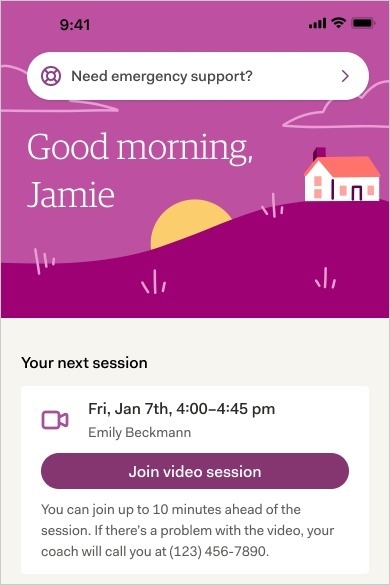
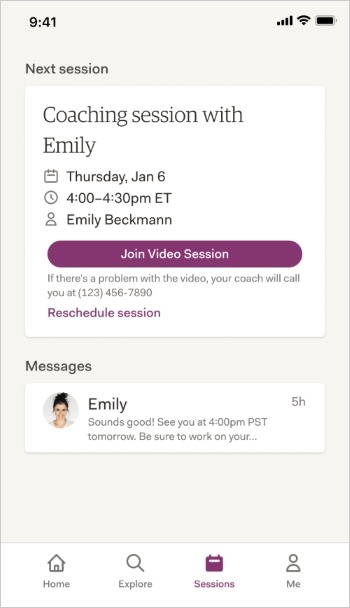
After you are logged in, click on “Join video session” on the Home tab. (See screenshot)
Allow camera and microphone
You may need to allow your browser and the AbleTo website (app.ableto.com) to use your camera and microphone. Follow the steps for your device and browser.
After you enter the video session:
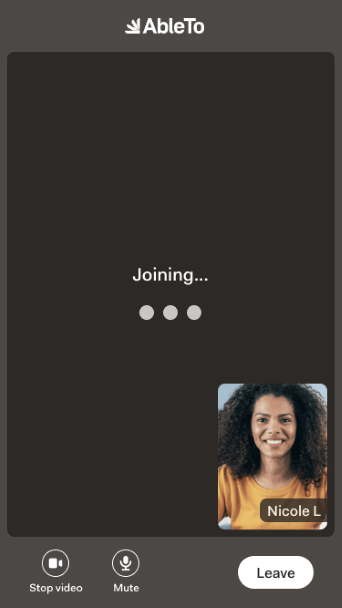
- Use the video toolbar
You can turn your video on and off, and to mute or unmute yourself.
- Wait for your provider
If your provider hasn’t joined yet, you’ll see a screen that says “Waiting for others to join.”
Check mic and video settings
When your provider joins, make sure your mic is unmuted and your video is on. Remove any stickers or lens blockers from in front of your device’s camera.
Still need help? Get more video troubleshooting tips.
Join from Your Desktop: Chrome
Allow camera and microphone
When a window pops up asking to use your camera and microphone, click Allow while visiting the site.
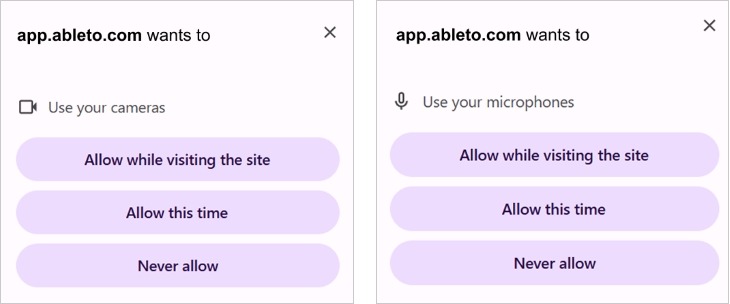
If you blocked app.ableto.com before, or need to turn on the Camera or Microphone settings in Chrome:
- Click the three dots in the upper right corner of Chrome.
- Click Settings.
- Under Privacy and security, click Site Settings.
- Under Permissions, click Camera.
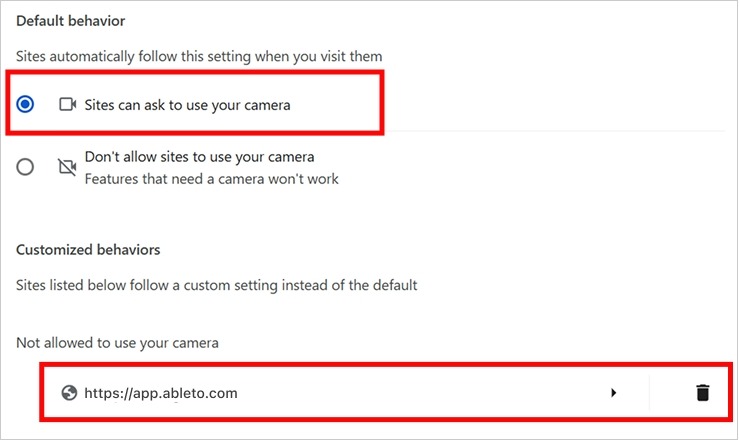
- Choose Sites can ask you to use your camera.
- Check if app.ableto.com is listed under Not allowed to use your camera.
- If it is, click the trashcan icon to unblock it.
- To allow Microphone access, go back to Site Settings
- Click Microphone.
- Repeat the same steps as for the Camera.
Check your camera and microphone
- After you update the settings, go back to app.ableto.com on your browser.
- Refresh the page to make sure the changes are working.
- Make sure your mic is unmuted, your camera is uncovered, and your video is on.
- If your provider hasn’t joined yet, you’ll see a “Waiting for others to join” screen.
Need More Help? Visit the Google Chrome Help Center for more information
Join from Your Desktop: Safari
Allow camera and microphone
When a window pops up asking to use your camera and microphone, click Allow.
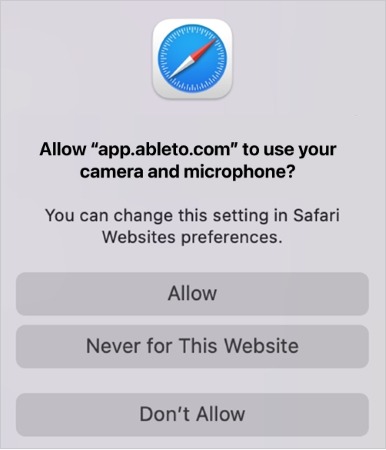
If you blocked app.ableto.com before, or need to turn on the Camera or Microphone settings in Safari:
- Click Safari in the upper left corner
- Open Settings.
- Click Websites.
- The settings you can update are listed on the left.
- In the left menu, click Camera.
- Find app.ableto.com and choose Allow.
- In the left menu, click Microphone.
- Find app.ableto.com and choose Allow.

Check your camera and microphone
- After you update the settings, go back to app.ableto.com on your browser.
- Refresh the page to make sure the changes are working.
- Make sure your mic is unmuted, your camera is uncovered, and your video is on.
- If your provider hasn’t joined yet, you’ll see a “Waiting for others to join” screen.
Need More Help? Visit the Safari User Guide for more information.
Join from Your iPad and iPhone (iOS): Chrome
Allow camera and microphone
When a window pops up asking to use your camera and microphone, tap Allow.
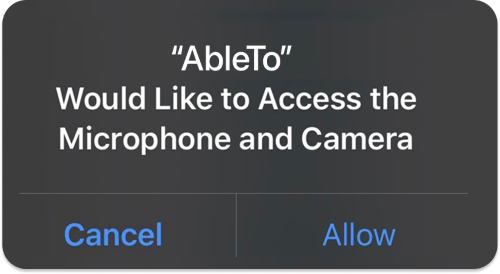
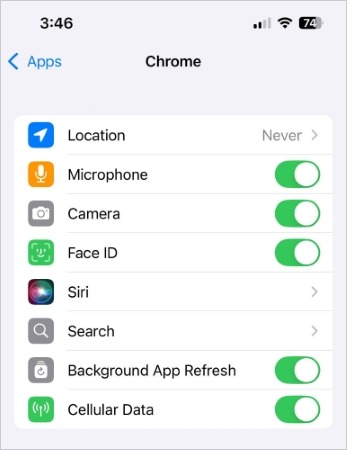
If you blocked app.ableto.com before, or need to turn on the Camera or Microphone settings in Chrome:
Option 1:
- Open the Settings. Tap Apps.
- Tap Chrome.
- Slide the switches next to Microphone and Camera to the right to turn them on.
- Go back to app.ableto.com and refresh the screen.
When a window pops up asking to use your camera and microphone, tap Allow.
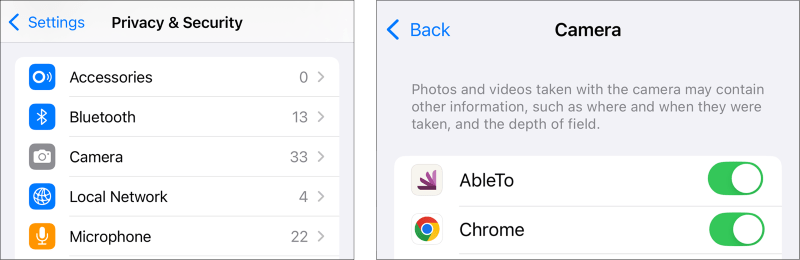
Option 2
-
- Open the Settings
- Tap Privacy & Security
- Tap Camera
- Find Chrome
- Slide the switch to the right to turn it on
- To turn on Microphone, go back to Privacy & Security
- Repeat the same steps as the Camera
- Go back to app.ableto.com and refresh the screen.
When a window pops up asking to use your camera and microphone, tap Allow.
Need More Help? Visit the Google Chrome Help Center for more information.
Join from Your iPad and iPhone (iOS): Safari
Allow camera and microphone
When a window pops up asking to use your camera and microphone, tap Allow.
If you blocked app.ableto.com before, or need to turn on the Camera or Microphone settings in Safari:
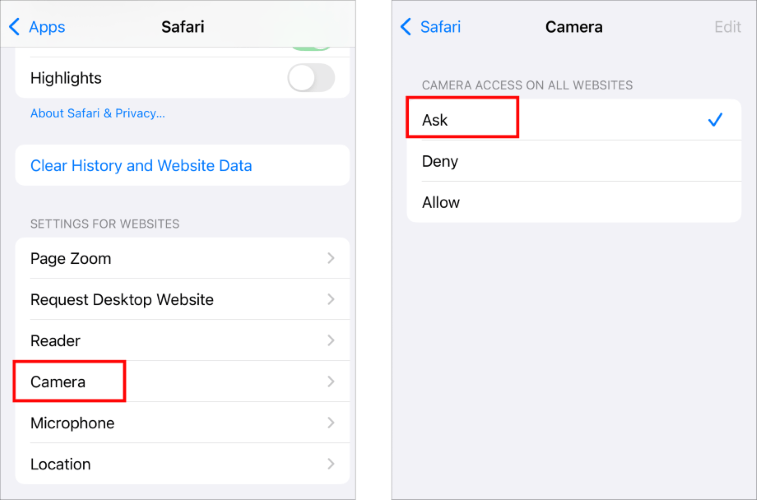
- Go to Settings. Tap Apps.
- Choose Safari.
- Under Settings for Websites, tap Camera or Microphone.
- For Camera, make sure Camera Access on All Websites is set to Ask.
- For Microphone, make sure Microphone Access on All Websites is set to Ask.
Go back to Safari and refresh the screen.
Check your camera and microphone
- After you update the settings, go back to app.ableto.com on your browser.
- Refresh the page to make sure the changes are working.
- Make sure your mic is unmuted, your camera is uncovered, and your video is on.
- If your provider hasn’t joined yet, you’ll see a “Waiting for others to join” screen.
Join from Your iPad and iPhone (iOS): AbleTo Mobile App
Allow camera and microphone
When a window pops up asking to use your camera and microphone, tap Allow.
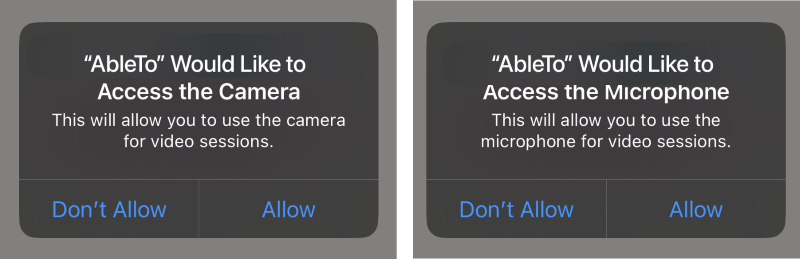
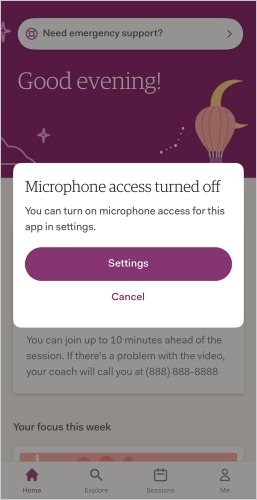
If you turned off the camera and microphone in the app before, you may see a pop-up asking you to change your settings.
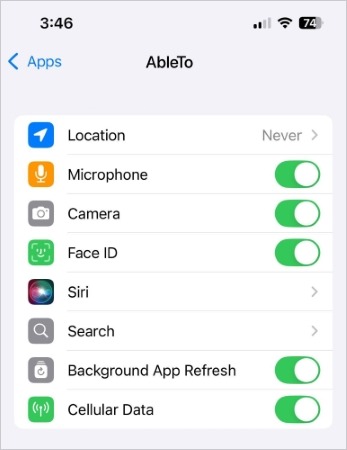
You can also turn on the Camera or Microphone settings for the app with the following options and steps.
Option 1
- Open the Settings.
- Tap Apps.
- Tap AbleTo.
- Slide the switches next to Microphone and Camera to the right to turn them on.
- Go back to the app
- Log out and log back in
When a window pops up asking to use your camera and microphone, tap Allow.
Option 2
-
- Open the Settings
- Tap Privacy & Security
- Tap Camera
- Find AbleTo
- Slide the switch next to Camera to the right to turn it on
- Go back to Privacy & Security
- Tap Microphone
- Repeat the same steps as for the Camera
- Go back to the app
- Log out and log back in
When a window pops up asking to use your camera and microphone, tap Allow.
Option 3
If none of the options above work works:
- Delete the AbleTo app.
- Download the app again from the App Store
- Log into to your account
When a window pops up asking to use your camera and microphone, tap Allow.
How to Join from Your Android Device: Chrome
Allow camera and microphone
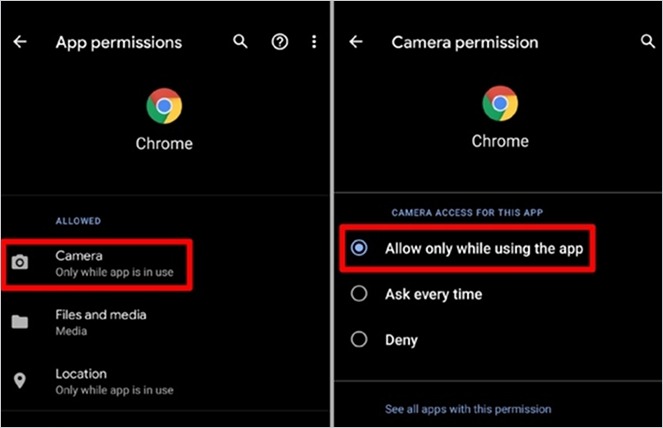
When a window pops up asking to use your camera and microphone, tap Allow.
If you blocked app.ableto.com before, or need to turn on the Camera or Microphone settings in Chrome:
- Open the Settings.
- Tap Apps.
- Tap Chrome.
- Tap Permissions.
- Tap Camera
- Tap Allow only while using the app to enable access.
- Go back to Permissions
- Tap Microphone
- Repeat the same steps as for the Camera
- Go back to app.ableto.com on your browser and refresh the screen
When a window pops up asking to use your camera and microphone, tap Allow.
How to Join from Your Android Device: AbleTo Mobile App
Allow camera and microphone
When a window pops up asking to use your camera and microphone, tap Allow.
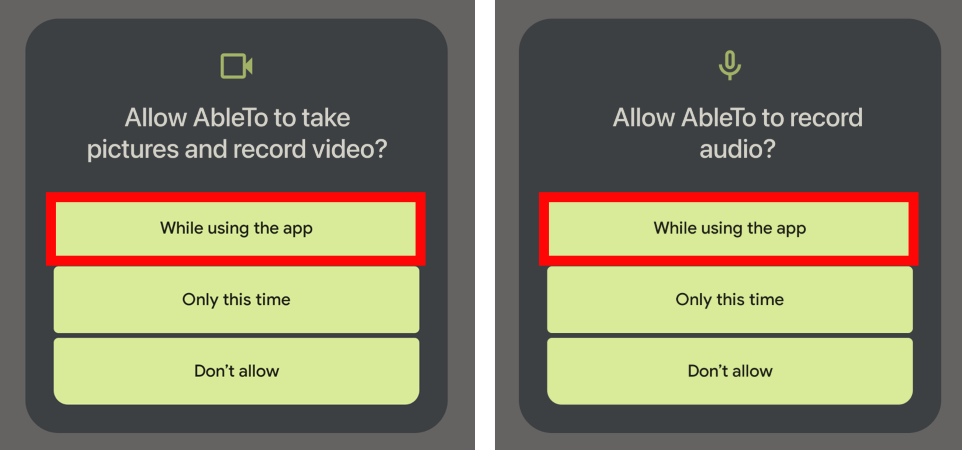
If you turned off the camera and microphone in the app before, you may see a pop-up asking you to change your settings.
You can also turn on the Camera or Microphone settings for the app with the following options and steps.
Option 1
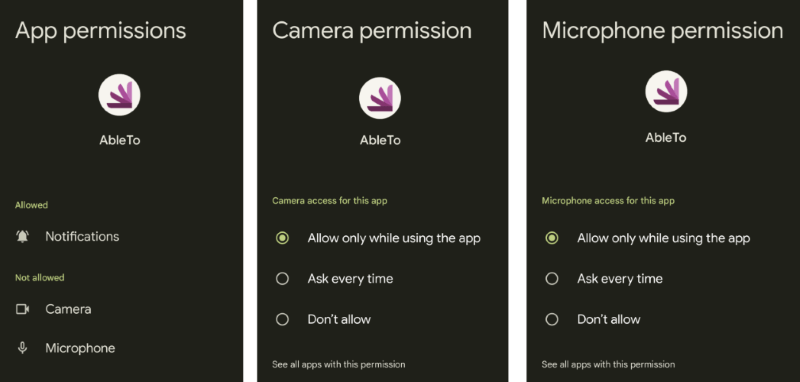
- Open the Settings.
- Tap Apps.
- Tap AbleTo.
- Tap Permissions.
- Tap Camera.
- Tap Allow only while using the app to enable access.
- Go back to Permissions
- Tap Microphone
- Tap Allow only while using the app to enable access
- Log out and log back in
When a window pops up asking to use your camera and microphone, tap Allow.
Option 2
-
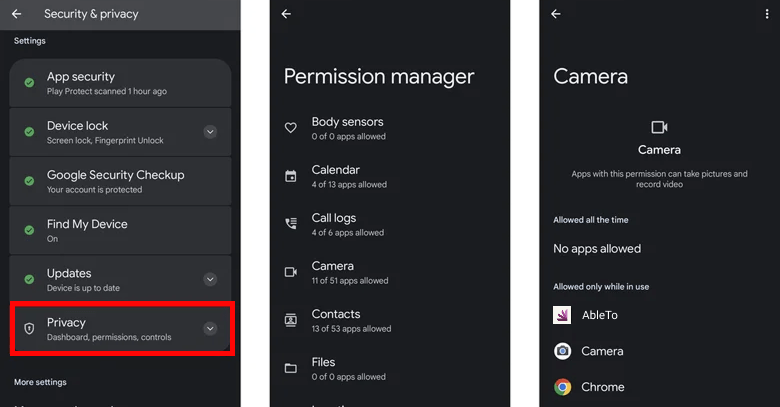
- Open the Settings.
- Tap Security & Privacy.
- Tap Privacy controls.
- Tap Permission manager.
- Tap Camera.
- Tap AbleTo
- Tap Allow only while using the app to enable access.
- Go back to Permission manager
- Tap Microphone
- Tap AbleTo
- Tap Allow only while using the app to enable access
- Log out and log back in
When a window pops up asking to use your camera and microphone, tap Allow.
Option 3
If none of the options above work works:
-
- Delete the AbleTo app.
- Download the app again from Google Play
- Log into to your account
- When a window pops up asking to use your camera and microphone, tap Allow.
Need More Help? Visit the Google Chrome Help Center for more information.
I only see a “Waiting for others to join” screen
Check the date and time:
- Make sure the session date and time on the screen are correct.
- If they are, wait 3-5 minutes for your provider to join.
If you’re still waiting after 5 minutes:
Your provider might call the phone number you gave us or send a message in the AbleTo chat.
To check messages:
- Go to app.ableto.com.
- Tap the Sessions tab.
- Look for messages from your coach.
Note: Some health plans or state rules might require video sessions.
If you continue to have issues, call us at 1-866-287-1802. We’re available Monday – Friday, 9 am – 8 pm ET.
I can’t see or hear my provider
Your provider might call the phone number you gave us or send a message in the AbleTo chat.
To check messages:
- Go to app.ableto.com.
- Tap the Sessions tab.
- Look for messages from your coach.
Note: Some health plans or state rules might require video sessions.
If you continue to have issues, call us at 1-866-287-1802. We’re available Monday – Friday, 9 am – 8 pm ET.
My provider can’t see or hear me
- Check that your mic is unmuted, your camera is uncovered, and your video is on.
- Make sure your browser and device have been allowed to access your camera and microphone. You can find instructions for different browsers and devices here.
Why do I see a flickering (or black) screen on my laptop?
Multiple things could be causing this issue. If neither of the troubleshooting tips below help, you may need to have a professional check your computer or camera.
- Make sure the camera you’re using is turned on and uncovered.
- Check if the correct camera is enabled. You can find instructions for different browsers and devices here.
- Try a different device or browser.
I was disconnected from my video session. How do I rejoin?
You can rejoin at any point in your session by going to app.ableto.com. Click on the Join video session link on your Home tab to get back into your session.
If you need more help, check the instructions in How to join a video session.
If you’re having issues, call us at 1-866-287-1802. We’re available Monday – Friday, 9 am – 8 pm ET.